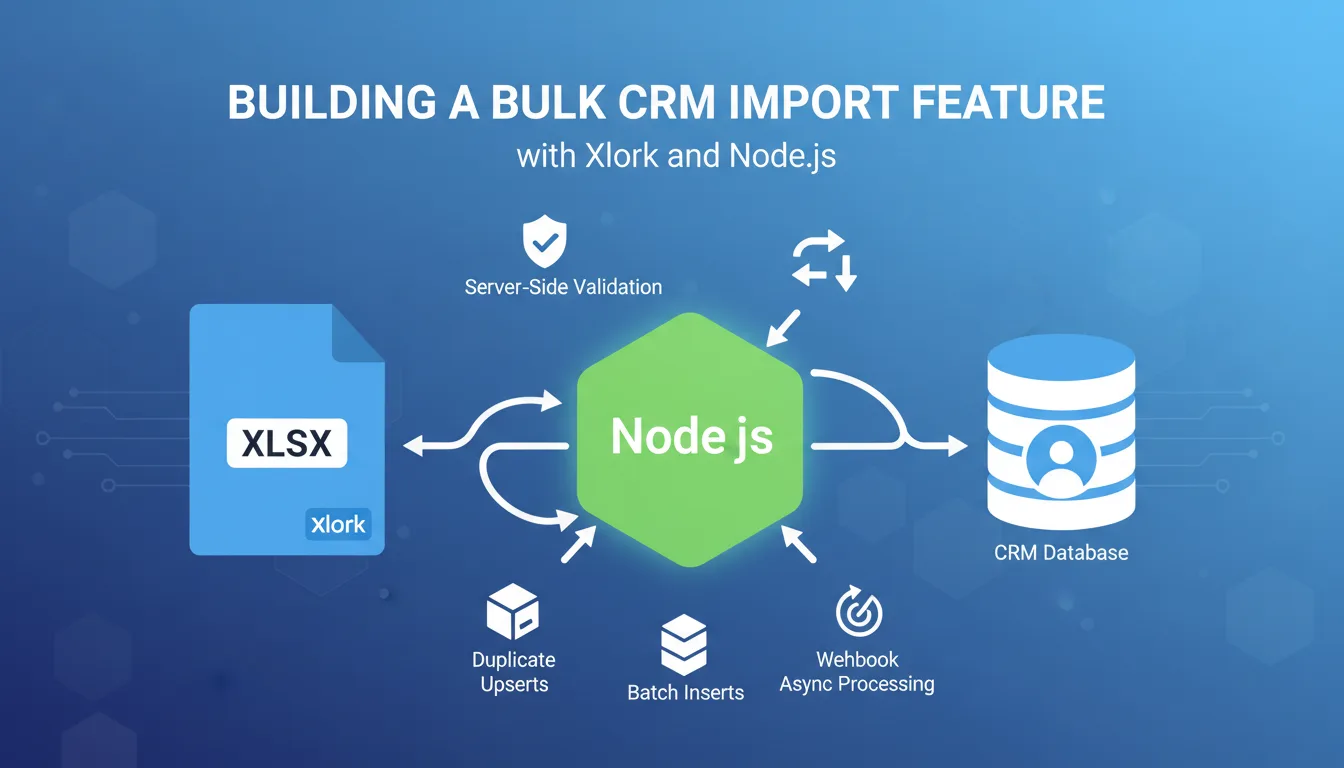
Every CRM eventually needs a bulk import feature. Whether your users are migrating from a spreadsheet, switching from a competitor, or onboarding a new sales team, they need to bring their existing contact data in — fast. Building that feature from scratch means parsing files, validating schemas, handling duplicates, normalizing messy data, and reporting errors back to users in a way that doesn't make them give up. This tutorial walks through building a production-ready CRM contact import feature using Xlork's Node.js SDK. By the end, you'll have server-side schema validation, duplicate detection with upsert logic, batch database inserts, and async processing for large files via webhooks.
1Why CRM Bulk Import Is Harder Than It Looks
The naive approach — read a CSV, loop over rows, insert into the database — breaks immediately in production. Users upload files with inconsistent column names (`Email Address` vs `email` vs `e-mail`), missing required fields, malformed phone numbers, and values that don't match your enums. A sales rep importing 4,000 contacts doesn't want to be told 'row 3,847 has an invalid deal stage' after waiting two minutes. They want to see exactly which rows failed, why they failed, and a way to fix and re-upload.
Xlork's Node.js SDK handles the parsing and column mapping layer, which is the hardest part to get right. Your job is to define the schema, write the validation logic, and decide what happens when data lands in your database. That's what this tutorial covers.
2Designing the CRM Contact Schema
Start by defining exactly what fields your CRM accepts. For a typical B2B CRM, a contact record includes identity fields, communication fields, deal metadata, and free-form notes. Here's a schema you can use as a starting point:
- ✓`contact_name` (string, required) — full name of the contact
- ✓`email` (string, required, unique) — primary email address, used as the deduplication key
- ✓`phone` (string, optional) — normalized to E.164 format on import
- ✓`company` (string, optional) — company or organization name
- ✓`deal_value` (number, optional) — estimated deal value in USD
- ✓`deal_stage` (enum, optional) — one of: lead, qualified, proposal, negotiation, closed_won, closed_lost
- ✓`source` (enum, optional) — one of: inbound, outbound, referral, event, other
- ✓`notes` (string, optional) — free-text field, max 1,000 characters
Two fields need special handling: `deal_stage` and `source` are enums, and users will upload whatever values they happen to use in their current system. `phone` needs normalization because the same number appears as `(415) 555-0100`, `4155550100`, and `+1-415-555-0100` depending on where it came from. You'll handle both in validation.
3Setting Up Xlork in Your Node.js Project
Install the SDK with `npm install @xlork/node`. Then initialize the client with your API key. Keep your API key in an environment variable — never hardcode it.
```javascript const { XlorkClient } = require('@xlork/node'); const xlork = new XlorkClient({ apiKey: process.env.XLORK_API_KEY, }); ```
Next, define your schema using Xlork's field definition format. This tells the SDK what columns to expect, what types they should be, and which are required. Xlork's AI column mapper will use this schema to automatically match incoming column headers — so a column called `Full Name` gets mapped to `contact_name` without you writing a single regex.
```javascript const crmContactSchema = [ { key: 'contact_name', label: 'Contact Name', type: 'string', required: true, }, { key: 'email', label: 'Email', type: 'string', required: true, validators: [{ validate: 'email' }], }, { key: 'phone', label: 'Phone', type: 'string', required: false, }, { key: 'company', label: 'Company', type: 'string', required: false, }, { key: 'deal_value', label: 'Deal Value', type: 'number', required: false, }, { key: 'deal_stage', label: 'Deal Stage', type: 'string', required: false, validators: [{ validate: 'regex', regex: '^(lead|qualified|proposal|negotiation|closed_won|closed_lost)$', error: 'Must be one of: lead, qualified, proposal, negotiation, closed_won, closed_lost', }], }, { key: 'source', label: 'Source', type: 'string', required: false, validators: [{ validate: 'regex', regex: '^(inbound|outbound|referral|event|other)$', error: 'Must be one of: inbound, outbound, referral, event, other', }], }, { key: 'notes', label: 'Notes', type: 'string', required: false, validators: [{ validate: 'length_max', max: 1000 }], }, ]; ```
💡 Pro tip
See the full list of built-in validators and field types in the Xlork Node.js SDK documentation at xlork.com/docs/node-sdk/schema.
4Server-Side Validation and Phone Normalization
Xlork's built-in validators catch type errors and enum mismatches, but phone normalization requires custom logic. Use a library like `libphonenumber-js` to normalize phone numbers to E.164 format. You can plug this into Xlork's transform hook, which runs on each row before the data lands in your application.
```javascript const { parsePhoneNumberFromString } = require('libphonenumber-js'); function normalizePhone(rawPhone) { if (!rawPhone) return null; const parsed = parsePhoneNumberFromString(rawPhone, 'US'); if (parsed && parsed.isValid()) { return parsed.format('E.164'); } return null; } function transformRow(row) { return { ...row, phone: normalizePhone(row.phone), deal_stage: row.deal_stage ? row.deal_stage.toLowerCase().replace(' ', '_') : null, source: row.source ? row.source.toLowerCase() : null, }; } ```
The `deal_stage` normalization covers the common case where users upload values like `Closed Won` instead of `closed_won`. Convert to lowercase and replace spaces before the enum validator runs. This small step eliminates a large percentage of validation errors on real-world data.
5Handling Duplicates with Upsert Logic
Email is your natural deduplication key for CRM contacts. When a user imports a file that includes contacts already in the database, you have three options: skip duplicates, overwrite existing records, or merge fields. For most CRMs, upsert is the right default — update existing records with new field values, but don't wipe fields that aren't present in the import.
```javascript const { Pool } = require('pg'); const pool = new Pool({ connectionString: process.env.DATABASE_URL }); async function upsertContact(contact) { const query = ` INSERT INTO contacts ( contact_name, email, phone, company, deal_value, deal_stage, source, notes ) VALUES ($1, $2, $3, $4, $5, $6, $7, $8) ON CONFLICT (email) DO UPDATE SET contact_name = COALESCE(EXCLUDED.contact_name, contacts.contact_name), phone = COALESCE(EXCLUDED.phone, contacts.phone), company = COALESCE(EXCLUDED.company, contacts.company), deal_value = COALESCE(EXCLUDED.deal_value, contacts.deal_value), deal_stage = COALESCE(EXCLUDED.deal_stage, contacts.deal_stage), source = COALESCE(EXCLUDED.source, contacts.source), notes = COALESCE(EXCLUDED.notes, contacts.notes), updated_at = NOW() RETURNING id, email `; const values = [ contact.contact_name, contact.email, contact.phone, contact.company, contact.deal_value, contact.deal_stage, contact.source, contact.notes, ]; return pool.query(query, values); } ```
The `COALESCE` pattern means null values in the import file don't overwrite existing data. If a contact already has a phone number and the new import row doesn't include a phone, the existing value is preserved. This is almost always what users expect.
6Batch Database Inserts for Large Files
Running one database query per row is slow and will exhaust your connection pool on large imports. Batch your inserts. A batch size of 100-500 rows is a good starting point — adjust based on your row size and database configuration.
```javascript async function processImport(allRows) { const BATCH_SIZE = 250; const summary = { inserted: 0, updated: 0, failed: [] }; for (let i = 0; i < allRows.length; i += BATCH_SIZE) { const batch = allRows.slice(i, i + BATCH_SIZE); const client = await pool.connect(); try { await client.query('BEGIN'); for (const row of batch) { try { const transformed = transformRow(row); const result = await upsertContact(transformed); const wasUpdated = result.rows[0]?.xmax !== '0'; if (wasUpdated) summary.updated++; else summary.inserted++; } catch (err) { summary.failed.push({ email: row.email, error: err.message }); } } await client.query('COMMIT'); } catch (err) { await client.query('ROLLBACK'); throw err; } finally { client.release(); } } return summary; } ```
Each batch runs in a transaction. If a row fails within a batch, it's logged to `failed` and the batch continues — the failure of one row doesn't roll back the rest.
7Webhook Integration for Async Processing
For imports with thousands of rows, processing synchronously in an HTTP request handler will hit timeout limits. The right pattern is async: accept the file upload, kick off processing in the background, and notify the user when it's done. Xlork supports webhooks that fire when an import session completes.
```javascript app.post('/api/import/webhook', async (req, res) => { const signature = req.headers['x-xlork-signature']; const isValid = xlork.webhooks.verify({ payload: JSON.stringify(req.body), signature, secret: process.env.XLORK_WEBHOOK_SECRET, }); if (!isValid) return res.status(401).json({ error: 'Invalid signature' }); res.status(200).json({ received: true }); setImmediate(async () => { const { rows, metadata } = req.body; const summary = await processImport(rows); await notifyUser(metadata.userId, { type: 'import_complete', summary }); }); }); ```
Always respond to Xlork's webhook with a 200 immediately, before doing any processing. If your endpoint takes too long, Xlork will retry the webhook, and you'll process the same import twice.
💡 Pro tip
Webhook payload structure and signature verification details are documented at xlork.com/docs/webhooks.
8Reporting Errors Back to Users
- ✓Show a summary card: '3,842 contacts imported (3,801 new, 41 updated). 12 rows failed.'
- ✓Offer a downloadable error report as a CSV with the original row data plus an 'error' column
- ✓For small failure counts (under 50), display inline in the UI with row numbers and error messages
- ✓For enum validation failures on `deal_stage` or `source`, suggest the valid values directly in the error message
9Edge Cases Worth Handling Explicitly
- ✓Duplicate emails within a single import file: the second row will upsert over the first. Log it so users can audit.
- ✓Empty `deal_value` fields: treat empty strings as null, not zero — inserting 0 could look like bad data to the sales team.
- ✓Non-UTF-8 encoded files: Excel exports from older systems sometimes use Windows-1252 encoding. Xlork handles encoding detection automatically.
- ✓Files with BOM characters: UTF-8 files from Excel often start with a byte-order mark that corrupts the first column name. Xlork's parser strips BOMs.
10Putting It All Together
The total server-side code for this — schema definition, transformation, batched upserts, webhook handler, error export — comes in around 200 lines. Xlork handles the parts that take weeks to build well (file parsing, column mapping UI, validation rendering), and you write the domain logic that only you can write.
The parts that are hard about file import — inconsistent column names, encoding issues, user-facing validation UI — are the same regardless of your domain. Solve them once at the infrastructure level, not per feature.
This pattern extends directly to other CRM import scenarios: importing deals, activities, or companies follows the same schema-validate-transform-upsert structure. Once you have the webhook handler and batch processor in place, adding a new import type is a matter of defining a new schema and writing the appropriate transform and upsert functions.
💡 Pro tip
The Xlork Node.js SDK quickstart and full API reference are at xlork.com/docs. The free tier supports up to 100 imports per month — enough to build and test this feature end-to-end before going to production.