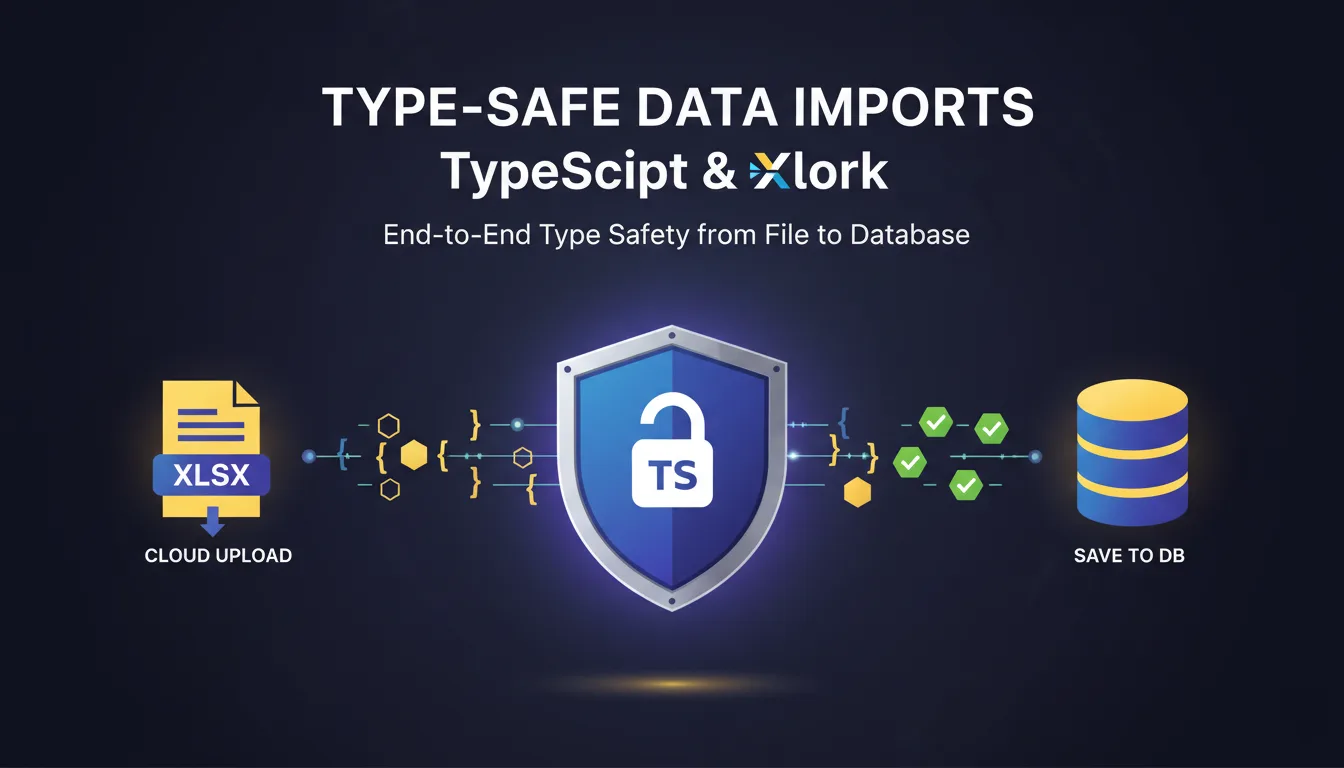

Adding a data importer to your React app should be as easy as dropping in a component. With Xlork's React SDK, it actually is. In this step-by-step tutorial, we'll go from zero to a fully functional data import widget in under five minutes — complete with column configuration, validation, theming, and a callback to receive the clean data.
11. Install the Package
Start by adding Xlork to your project. The package is available on npm and works with any React framework — Next.js, Vite, Create React App, Remix, or plain React.
npm install @xlork/react
# or
pnpm add @xlork/react
# or
yarn add @xlork/react22. Get Your License Key
Sign up at xlork.com to get a free license key. The free tier includes unlimited imports with up to 500 rows per import — no credit card required. Your license key will be displayed in your dashboard immediately after signup.
33. Add the XlorkClient Component
Import the XlorkClient component and configure it with your license key, columns, and an onComplete callback. Here's a minimal working example:
import { XlorkClient } from '@xlork/react';

export default function ImportButton() {
  return (
    <XlorkClient
      licenseKey="YOUR_LICENSE_KEY"
      user={{ email: 'user@example.com', name: 'John' }}
      settings={{
        title: 'Import Contacts',
        columns: [
          { label: 'Name', key: 'name', required: true },
          { label: 'Email', key: 'email', required: true },
          { label: 'Phone', key: 'phone' },
          { label: 'City', key: 'city' },
        ],
        theme: 'PURPLE',
      }}
      onComplete={(data) => {
        console.log('Valid rows:', data.validData);
        console.log('Invalid rows:', data.invalidData);
      }}
    />
  );
}
That's it. When users click the import button, Xlork opens a full-screen modal with file upload, column mapping, validation, and data preview — all handled automatically.
44. Configure Columns and Validation
Each column in your settings array defines a field in your schema. You can specify labels, keys, required flags, data types (string, number, date, dropdown), validation patterns, and dropdown options. Xlork uses this schema to validate every row and highlight errors inline.
columns: [
  { label: 'Email', key: 'email', required: true },
  { label: 'Age', key: 'age', type: 'number' },
  {
    label: 'Role',
    key: 'role',
    type: 'dropdown',
    options: ['admin', 'editor', 'viewer'],
  },
  {
    label: 'Start Date',
    key: 'start_date',
    type: 'date',
    dateFormat: 'YYYY-MM-DD',
  },
]55. Handle the Imported Data
The onComplete callback receives an object with validData (rows that passed all validation) and invalidData (rows with errors). You can send this directly to your API, update local state, or process it however your app needs.
💡 Pro tip
Use the loadOnDemand prop to defer loading the Xlork widget until the user clicks a button. This keeps your initial bundle size small and avoids loading the import UI on pages where it isn't needed.
66. Apply a Theme
Xlork ships with 16 built-in themes: PURPLE, BLUE, GREEN, RED, ORANGE, TEAL, DARK, LIGHT, and more. Set the theme property in your settings to match your brand. For deeper customization, pass custom CSS variables to override colors, fonts, and spacing.
77. Next Steps
You now have a working data importer in your React app. From here, you can explore advanced features like multi-sheet Excel support, Google Sheets import via URL, custom validation functions, transformation hooks, and webhook callbacks. Check out our full documentation at xlork.com/docs for the complete API reference.